
Changelog
New features and improvements in Proferex, newest first.
Put the category in your article URLs
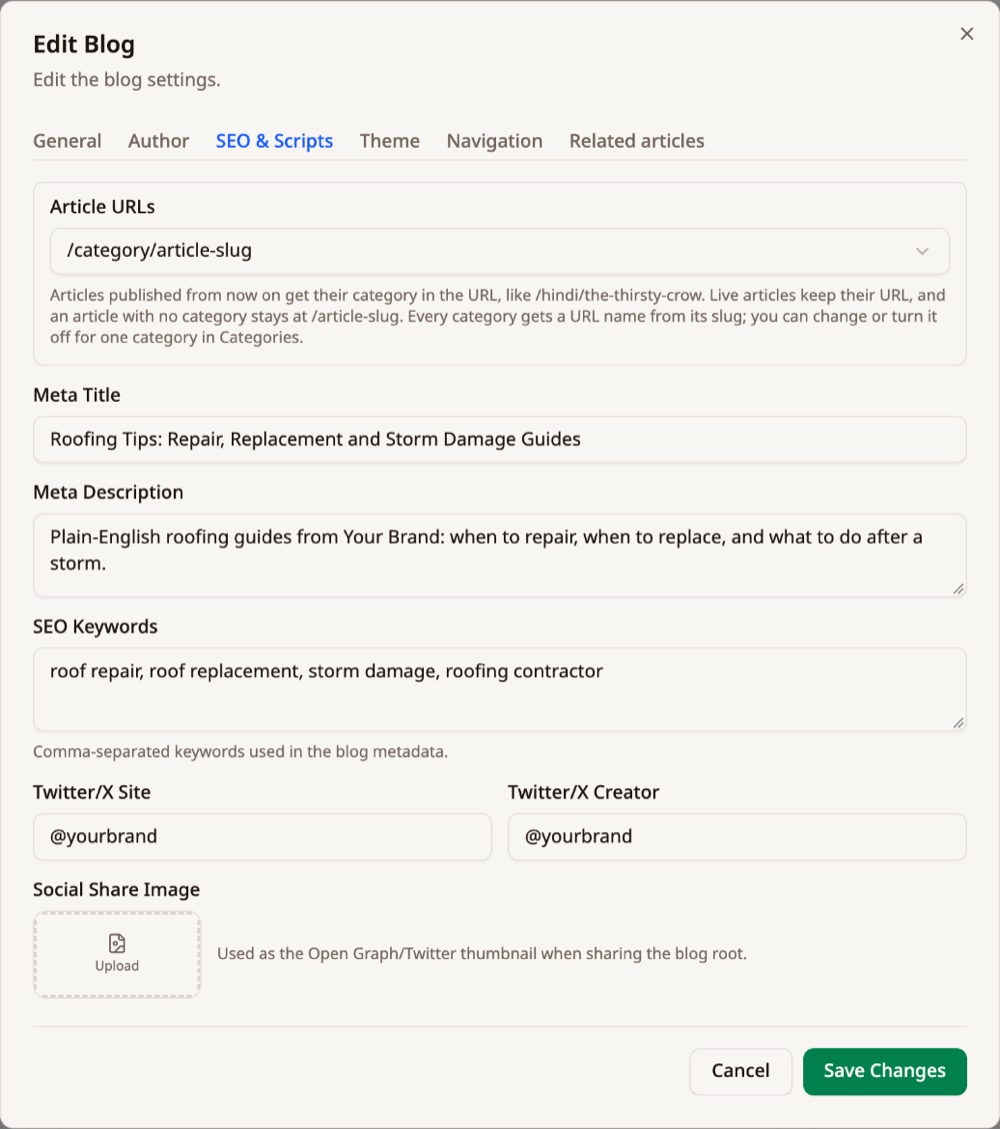
Articles can now live at an address that names their category, like /roof-repair/signs-roof-needs-replacing or, for a language blog, /hindi/the-thirsty-crow. Readers and search engines see what the article is about before they click.
Turn it on for the whole blog in Blog Settings, under SEO & Scripts, or for one category with its Use in article URLs switch. Only articles published from then on get the new address. Everything already live stays exactly where it is, so no link breaks. Want to move older articles too? The category has a button for that, and their old addresses keep working.
Article URLs, at the top of SEO & Scripts Changing a live article's URL no longer breaks links
Fix a typo in a published article's permalink and the old address used to show a page-not-found error, taking every ad, email and search result that pointed at it down with it. Now the old address sends readers and search engines straight to the new one, even after several changes.
Add a category without leaving the article
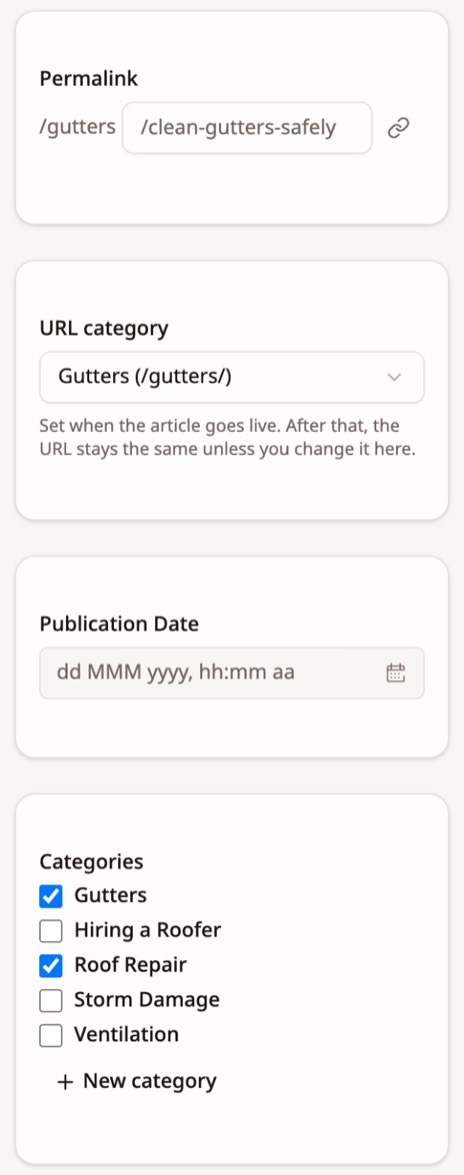
Writing an article and realise the right category doesn't exist yet? Click New category under Categories in the editor, type the name and press Enter. It's created and ticked on the spot, no detour to the Categories page and no reload.
New category, under Categories Your AI app can line up TrafficStars and ExoClick numbers with Proferex
If your AI app has your ad network's connector too, it can now put the network's impressions and real cost next to Proferex's visits, conversions and revenue, per campaign, zone or ad. Proferex works out which URL parameter holds the zone, counts days in the network's timezone so both sides cover the same hours, and tells your AI app exactly what to ask the network for.
And when it pauses a zone or changes a bid at the network, it can leave a dated note on the Proferex campaign, so next week you still know why the numbers moved. Notes wait for your approval, and Approve all notes clears a batch in one click.
ExoClick shows your real revenue
The ExoClick template's postback now sends each conversion's payout. Set your ExoClick goal's value to Dynamic and ExoClick's own reports show real revenue and ROI, instead of -100% on campaigns that are making money.
Small edits to live blog pages from your AI app
Asking your AI app to change a few numbers on your blog's home page used to mean it sent the whole page back, and some apps refused a change that big. Now it sends just the lines that change. The approval page lists each one, so you see exactly what moves before you approve.
Your AI app sees all of a long list
Lists your AI app reads, like blog articles, campaigns, contacts and report rows, used to stop at the first batch. Now it can ask for the next page, so "check every article" really means every article.
Reading versions in three, with Side by side
The Reading Versions button now asks what you want: two versions or three, and what each button should say. It shows you the buttons your readers will get before you insert anything. Three versions get Side by side too: all three next to each other on a computer, and on a phone each paragraph followed by its other two versions. Handy for a story in its own script, in English letters and translated.
59 more traffic sources, set up in one click
The Templates button on a new traffic source used to offer four networks. It now has 63, from PropellerAds, MGID and Adsterra to Taboola, Outbrain, Zeropark and RichAds, and you can type to find yours. Pick one and Proferex fills in the click ID, the network's own variables and, for most networks, the postback URL that reports conversions back. Where something has to come from your network account, like a goal ID, a key or a postback the network makes for you, the template tells you where to find it.
Your AI app can create a traffic source from any of these templates too.
Ask your AI app what's waiting for your approval
Your AI app could check one change it had sent for approval, but it couldn't see the whole queue. Now it can. Ask something like "What's still waiting for my approval in Proferex?" and it lists every waiting change with its approval link, and tells you how close you are to the limit of 50. Handy before you start a new batch.
Favicons and share images load on your blog's own domain
A favicon or social share image uploaded to your blog didn't load once the blog was on your own domain, so the browser tab showed a blank icon and shared links had no picture. Both load now.
Arabic and Urdu look right on your blog
Arabic and Urdu used to show in whatever font the reader's device happened to have. Urdu now uses Nastaliq, the style its readers expect, and Arabic, Persian and the rest use Naskh. The fonts only load on pages that have those letters, so every other page stays just as fast.
Lines that mix right-to-left and English text also keep their punctuation where it belongs. A title like the one below used to put the dash on the wrong side. That's fixed in titles, headings, lists, tables and paragraphs.

An Urdu and English title, in the right order Approving an old AI edit won't undo a newer one
Say your AI app proposes an edit to an article, and you or a teammate change the article before you get to the approval. Approving used to put the older text back over your changes. Now Proferex spots it, marks the proposal as outdated, and asks you to decline it and get a fresh version from your AI app.
Your blog's sitemap shows when each article really changed
Search engines read the date in your sitemap to decide what to look at again. It used to show only the day an article was published, so editing a live article never told them anything. Now it follows real edits to the title, text, excerpt, SEO fields or featured image. Fix a typo and Google can see the page changed. Leave it alone and the date stays put.
Show the same text in two versions your readers can switch between
Running a language blog? You can now show a story in its own script and in English letters, and readers pick the one they can read with a button above it. Each version reads straight through like a normal story, and Side by side shows both together: in two columns on a computer, and each pair under its paragraph on a phone. It works just as well for song lyrics, prayers, or an original next to its translation.
Select the paragraphs in the editor and click Reading Versions in the toolbar. Your AI app knows the format too, so you can ask it to add the second version for you.
Wide tables and blog menus stay on the screen
A wide table in an article used to stretch the whole page sideways on a phone. Every table now scrolls inside its own box instead. The share menu and the last menu in your blog's header also stay on the screen now, instead of opening off the edge.
End every article with related reading
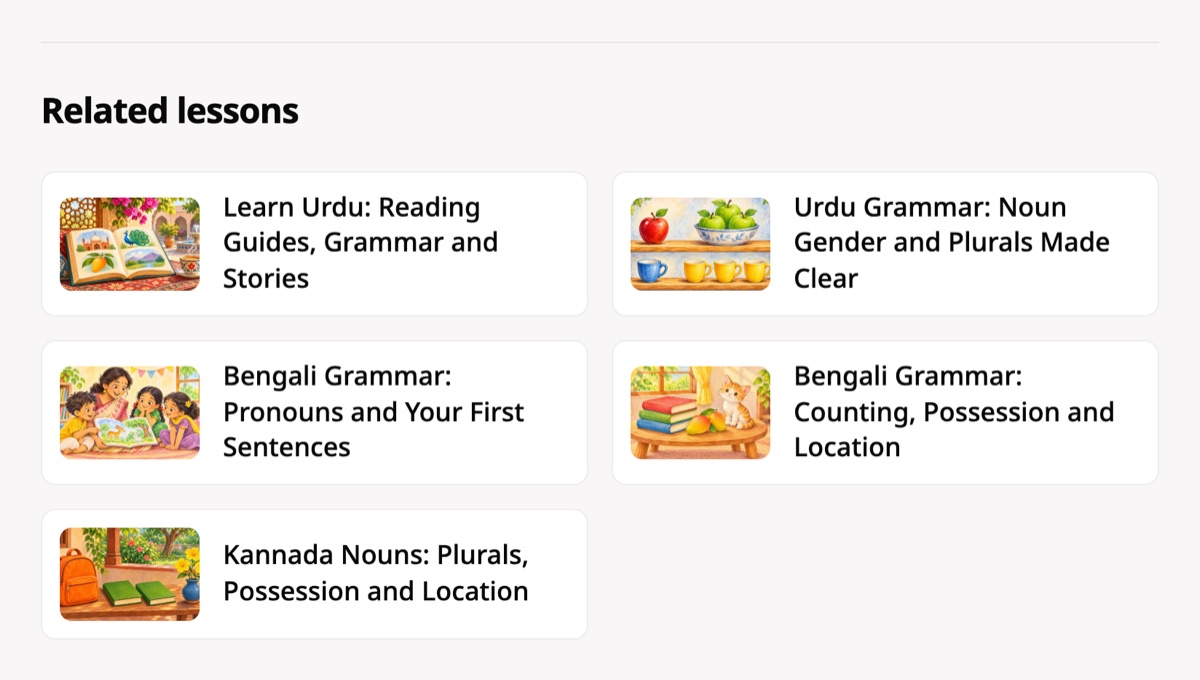
Turn on Related articles in your blog settings and every article ends with a list of others worth reading next. It picks the ones that share the most categories, newest first, and keeps itself up to date as you publish. Name it whatever suits your blog, like Related lessons or Read next.
Want a main guide to show first? Pin it on a category and it leads the list under every article in that category, or pin something on one article only.
The list at the end of an article, renamed Related lessons Your AI app can add images from your computer to your blog
Until now, an AI app could only add an image to your blog's media library from a public link, or by pasting the whole file as text, which doesn't work for a normal-sized photo. AI apps that work with files on your computer, like Claude Code or Codex, can now send the image straight in. It waits for your approval with a preview, then lands in the media library like any other upload.
Up to 50 AI changes can wait for your approval
Ask your AI app to set up a batch of offers or landers and it used to stop at 20 changes waiting for you. It's 50 now, so a bigger job fits in one go. You'll find them all under Account → Connected AI Apps → Proposed changes.
Build blog pages that don't look like articles
Every custom page on your blog used to get the article treatment, with the title, date and blog name across the top. That's right for About or Contact, but not for a services page or a guides hub you've laid out yourself. Each custom page now has a Layout setting: Standard keeps the article look, and Blank shows a link back to your home page and then only your content, so the page looks like part of your site.
New pages start as Standard. With Blank, begin your content with your own heading, since the title isn't shown on the page (it still names the browser tab and search results). Your AI app and the Tracker Agent can set the layout too.
Can't delete something? Now you'll know what's using it
When a lander, offer or combination was still in use, Proferex refused to delete it without saying where. Now the message names it, like "This lander is used in the combination Push Main", or lists the campaigns that use a combination, so you know exactly what to change first.
Blog images load faster
PNG screenshots are often far bigger than they need to be, and they were slowing blog pages down. Images you upload to a blog are now saved as JPG, so roof.png becomes roof.jpg and loads much faster. Logos and favicons stay PNG, animated GIFs stay animated, and transparent areas turn white.
Add the conversions that never arrived
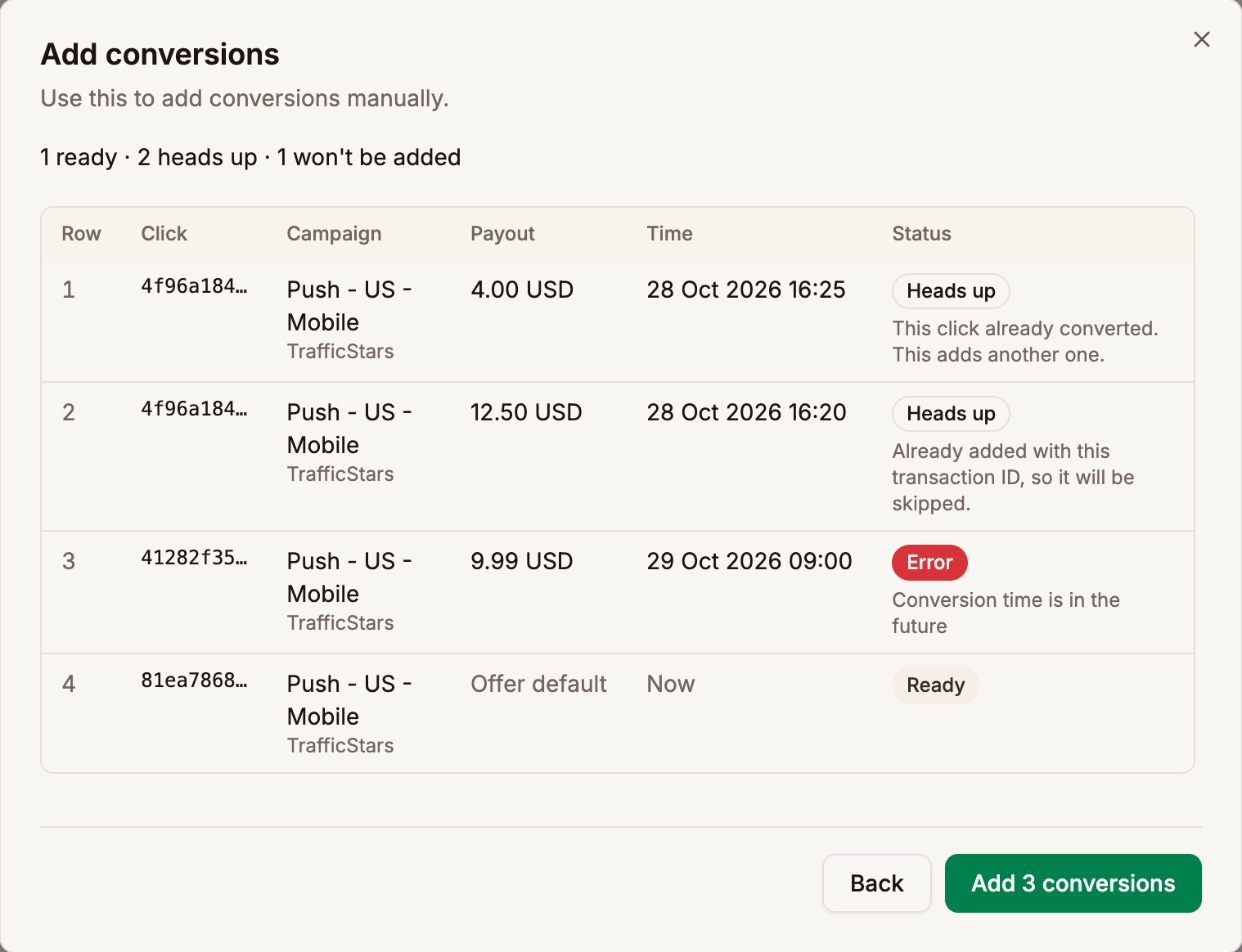
Every tracker has the week where a postback was set up wrong, and the sales sit in your network's report but not in Proferex. Now you can add them yourself. Open the Conversion Log, click Add conversions, and enter one, or paste or upload up to 100 rows straight from your network's export.
Each one goes through the same rules as a postback: it finds its campaign and offer from the click ID, takes the offer's payout if you leave it empty, lands on the day you say it happened, and is skipped if Proferex already has it. You see every row before anything is added, and they carry a Manual tag in the log afterwards. Your AI app and the Tracker Agent can do it too.
Check every row before it is added Enter a campaign's cost for a day yourself
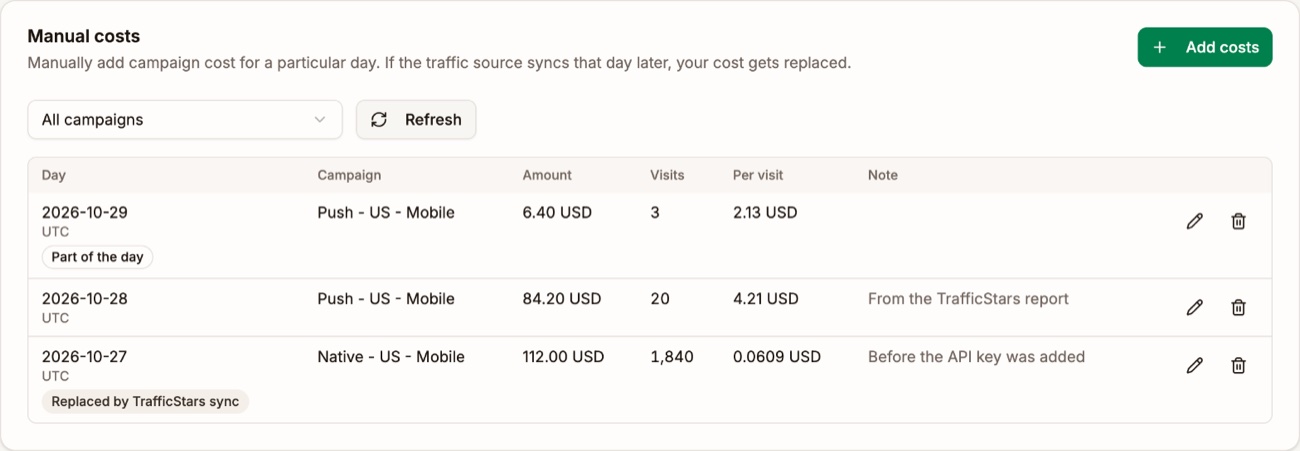
Not every traffic source has an API, and sometimes the synced number is just wrong. Tracker Settings has a new Manual Costs tab: pick a campaign and a day, enter what you spent, and Proferex shares it across that day's visits. The timezone and currency fill in from the traffic source, so the day matches its report.
You can paste a whole week from a spreadsheet, and save today as you go (it covers the visits up to now, so save again when the day is over). If cost sync pulls the same day later, the newer figure wins, and the tab tells you so.
Tracker Settings, Manual Costs Choose which upsells and rebills your traffic source hears about
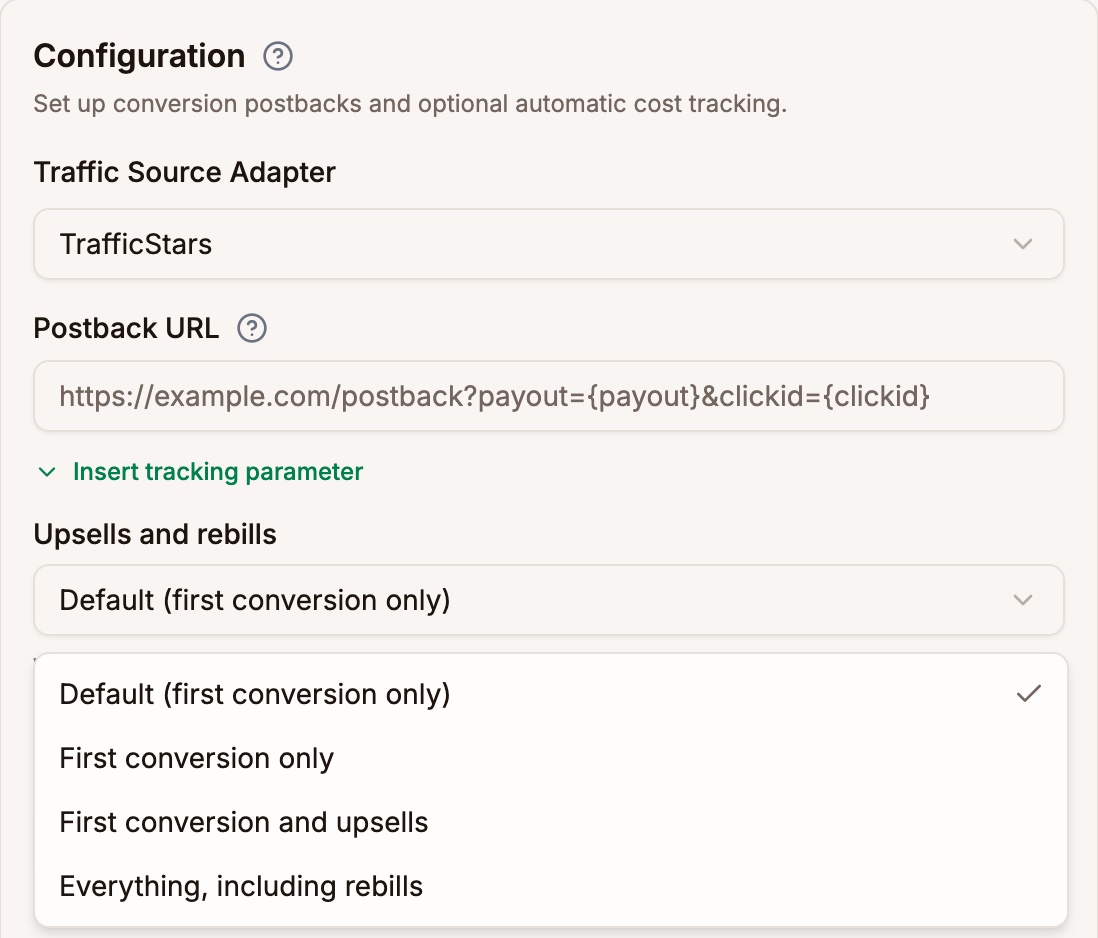
Push and pop networks treat every postback as a new conversion. So when we passed on an order bump or a monthly renewal, your traffic source thought you'd bought another customer, and its CPA went wrong. Each traffic source now has an Upsells and rebills setting, and the default is the first conversion only. Your Proferex reports still count everything.
Two new postback parameters cover the odd case: send=1 or send=0 decides for one conversion, and count=1 counts an upsell or rebill as a conversion of its own. One more thing while we were in there: a negative payout, like a chargeback, is now refused instead of being booked at the offer's payout.
The setting sits under the Postback URL CPA cost now lands on the day of the conversion
A CPA traffic source bills you when the visitor converts, so that's when Proferex now charges it. A visit on Monday that converts on Tuesday costs nothing on Monday and the CPA on Tuesday, which is how your traffic source's invoice reads too. Before, the charge went back onto Monday and a late conversion quietly changed a day you'd already closed.
Upsells and rebills no longer add a second CPA either. You pay once per customer, and now Proferex agrees.
Costs from your click URL show up for every traffic source
If you set up your own traffic source and passed the cost in the click URL, the visits were tracked but your reports showed $0 cost. That's fixed: the cost now reaches your reports within a minute, whatever the traffic source. Small thing, but it made profit on those campaigns look far better than it was.
See which articles are scheduled
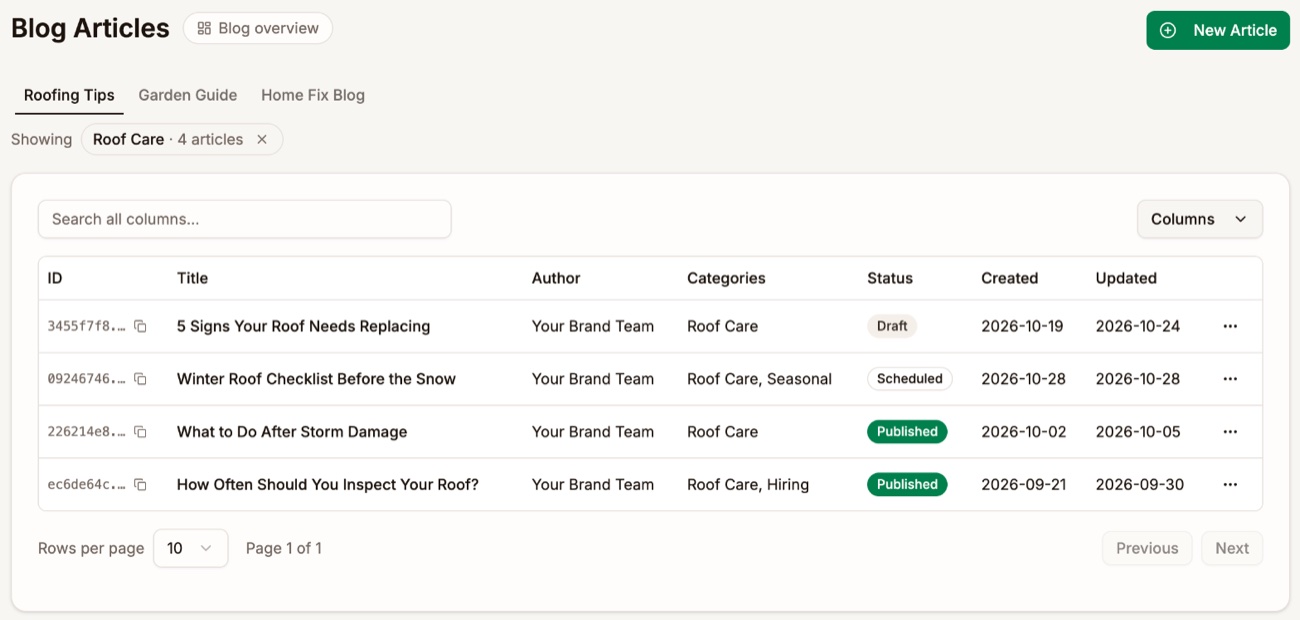
The article list now says Scheduled for an article that goes live on a future date, instead of calling it Published. And clicking a category's article count shows just that category's articles, with a chip at the top to clear the filter.
One category's articles Your AI app and the Tracker Agent can now do everything the app can
We went through every screen in Proferex and gave the AI side whatever it was still missing. Ask Claude, ChatGPT, Codex or the Tracker Agent to read your Click Log, Conversion Log and Postback Log ("why is this conversion missing?" finally gets a real answer), re-fire a postback, delete things you no longer need, set a campaign's cost model or URL slug, create a traffic source from the ExoClick template, change a lander's page or domain, and manage tracking domains, page domains, your default campaign, piggyback postbacks, published pages and lander uploads.
The rules haven't changed. Every change still waits for your confirmation, deletes are one item at a time and never suggested on their own, and anything still in use is refused with the reason. Ad spend and API keys stay in the app.
One small thing on the way: an ExoClick traffic source no longer insists on its API token before it will save. Set it up like TrafficJunky or TrafficStars, add the token when you have it, and cost sync starts then.
Your AI app can now publish a page and set a lander's URL parameters
Until now, an AI app could upload and edit a page but couldn't turn it into a Published Page, and couldn't give a lander the URL parameters its page needs, such as clickid={clickid}. Both are possible now, from Claude, ChatGPT, Codex or the Tracker Agent. So "publish index.html from my new upload and make it a lander that passes the click ID" is one conversation, with each step waiting for your approval as usual.
A slimmer header, with a trail back
The bar above every page used to be mostly empty. It's now a thin strip with the menu button and a breadcrumb trail, so on a campaign you see Tracker, Campaigns, then the campaign's name, and any part of the trail takes you back. Pages also share one width now, so a wide screen doesn't get one page stretched edge to edge and the next one stopping short.

The header on a campaign page One page for each blog
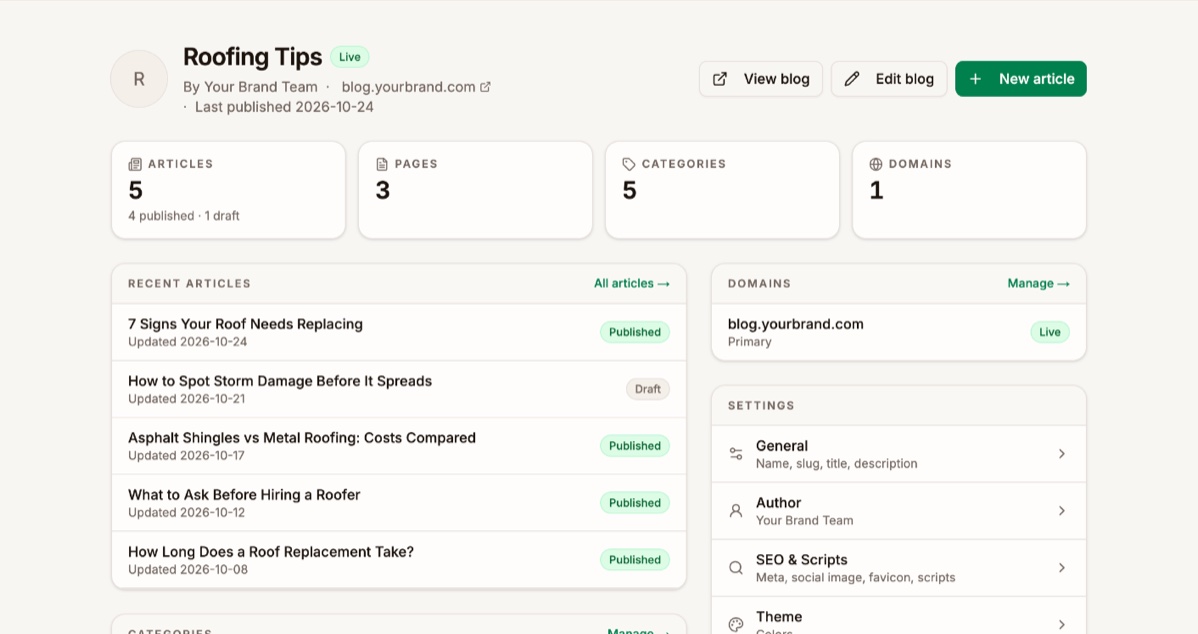
Click a blog under Blog → Blogs and you land on its own overview: articles, pages, categories, domains and settings in one place, with each count linking straight into that list. We built it because we kept bouncing between Articles and Pages just to find out what a blog had in it.
A few small things came with it. A category's row opens its edit dialog, its article count opens the articles in that category, and every blog list has a quick way back to the blog's overview.
A blog overview Connect more than one Proferex account to the same AI app
AI apps like Claude keep one sign-in per connector address, which left you with one Proferex account per app. Now every account has an address of its own as well. Copy it under Account → Connected AI Apps, add it as another custom connector named after the account, and allow access. Proferex checks you're signed in to the matching account before it connects.
The usual address works exactly as before for a single account.
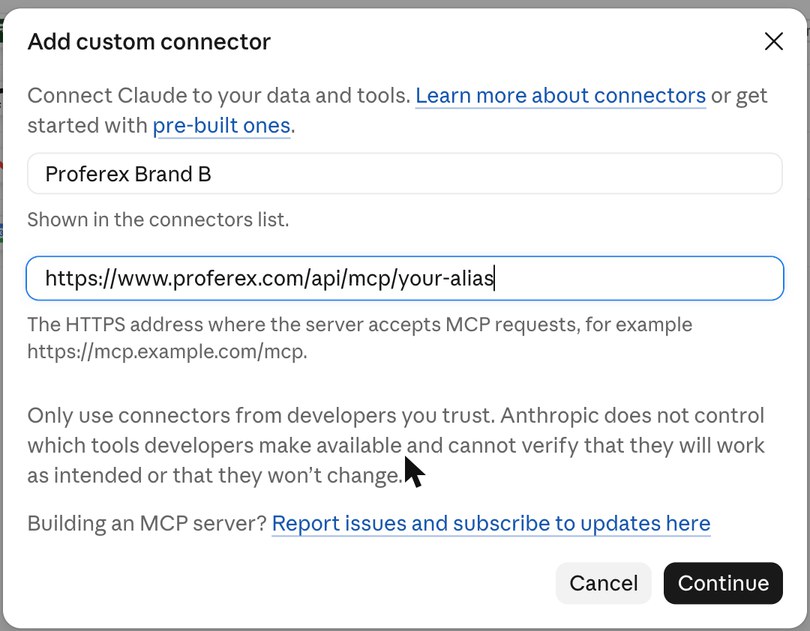
One connector per account, named after the account ExoClick: your click ID can't get cut off anymore
Some ExoClick video pages were cutting campaign URLs short, so a share of those clicks reached Proferex without a click ID and their conversions never made it back to ExoClick. The campaign URL we give you now puts the click ID and cost first, where nothing can get in their way.
If you set up ExoClick before this week, open the campaign, copy its URL again and paste it into ExoClick. Takes a minute, and your ExoClick conversion counts will be whole again.

Click ID and cost first Connection Type tells mobile data from Wi-Fi more reliably
The Connection Type breakdown in your reports got more accurate. It now separates Carrier from Wi-Fi on far more networks, marks Datacenter traffic such as cloud servers, VPNs and bots, and says Unknown instead of guessing when it isn't sure.
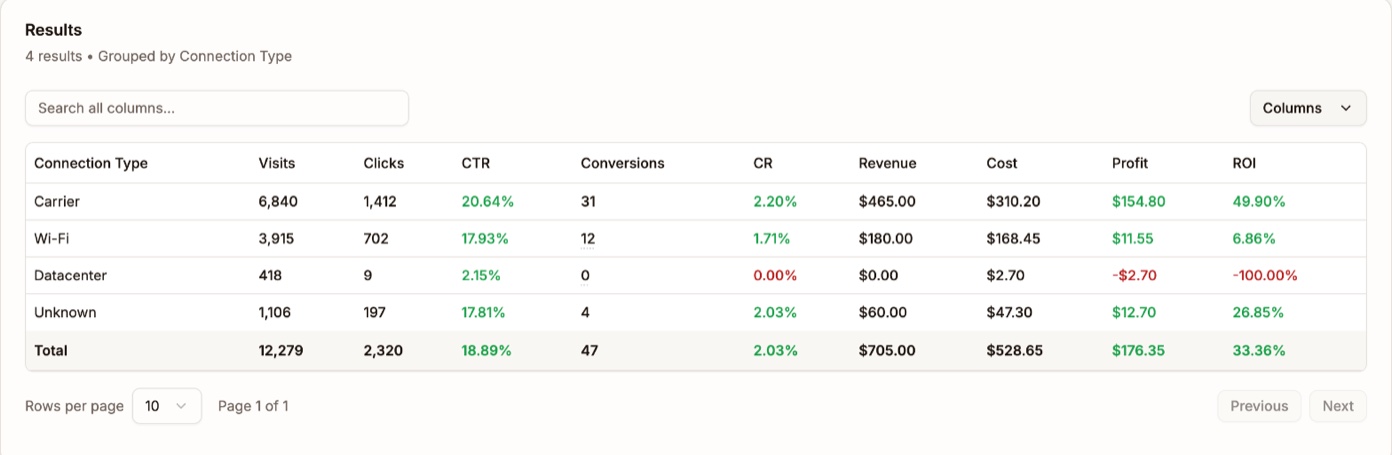
Analytics grouped by Connection Type CPA campaigns take the cost from your click URL
If your traffic source puts the price of each conversion in the click URL, like TrafficStars does with {cost}, a CPA campaign now uses it. Every conversion is charged at the price that came with its click, and a visit that never converts costs nothing. Static CPA is still there as the fallback for clicks that arrive without a cost.
That's the same order CPC campaigns have always used: synced spend first, then the URL, then the static value. The cost settings in the campaign form now spell out that order for whichever model you pick.
TrafficStars guide: which cost model to pick
The TrafficStars chapter now shows the Templates menu that fills in the whole traffic source for you, links to the full list of TrafficStars tokens, and walks through CPC, CPA and CPMV pricing. Pick the matching cost model in Proferex and the numbers line up with what TrafficStars bills you.
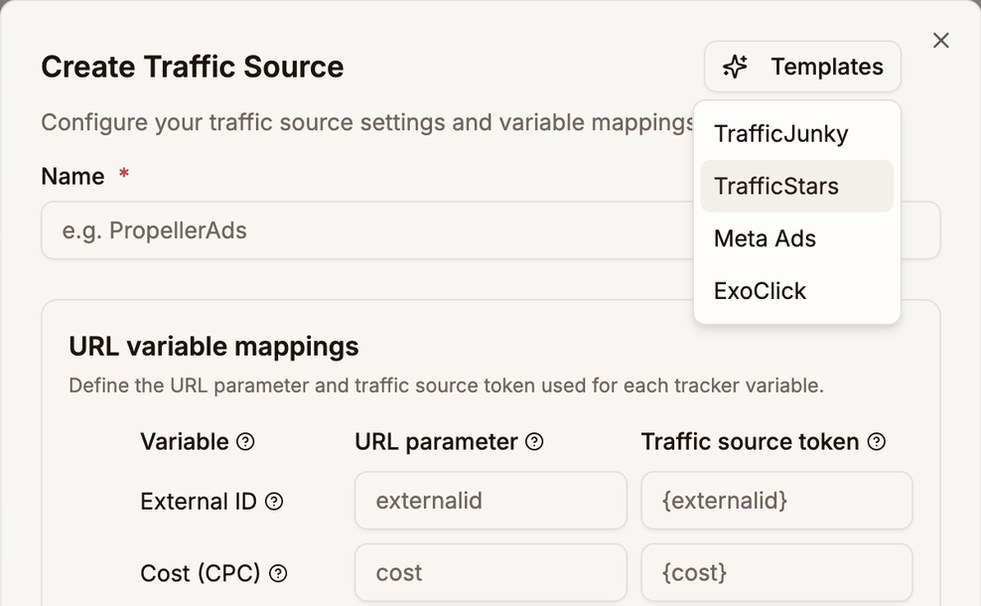
Templates fills in the whole form A quicker way to reach us
There's a small chat bubble in the bottom corner of the homepage and the manual. Click it and you get our email and Telegram. Stuck on a setup step while reading the docs? That's what it's for.
Buy more AI credits when you run low
Run out of AI credits halfway through the month? You don't have to wait for your plan to refill anymore. Open Account, go to AI Credits and drag the slider to any amount from $10 to $500. Every $1 gets you 100 credits, and the ones you buy never expire.
We also made Deep mode cheaper. The same Deep answer now uses about half the credits it did before.
Setup guides for Claude, ChatGPT and Grok
Every AI app hides its connector settings somewhere different, so we wrote a guide for each one, with screenshots of every click. Claude and Claude Code, ChatGPT and Codex, Grok and Grok Build.
The Claude guide also shows a setting worth changing: let it look up your stats without asking each time, but keep it asking before it proposes a change.
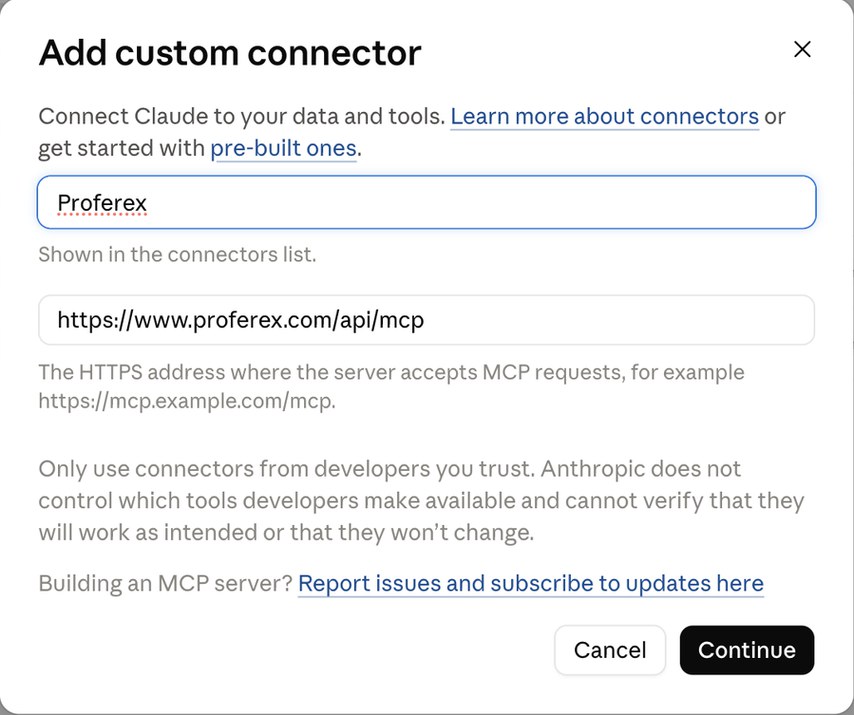
Adding Proferex to Claude Your AI can see every blog now
If your blog runs on your main site instead of its own domain, the agent, Claude and ChatGPT couldn't list what was published on it. Fixed. Ask what's live on any of your blogs and you'll get an answer.
Proferex now works inside Claude, ChatGPT and Grok
Already paying for Claude or ChatGPT? Hook it up to your Proferex account and just ask it things. Which campaigns made money last week? How are my US mobile offers doing compared to last month? It pulls the answer from your actual stats.
It can also set up offers, landers, campaigns and combinations for you. Before anything gets saved, you approve it in Proferex. It won't eat your AI credits either, since the chat runs on your AI app's plan. Works with Claude, Claude Code, ChatGPT, Codex, Grok and any other app that supports MCP.
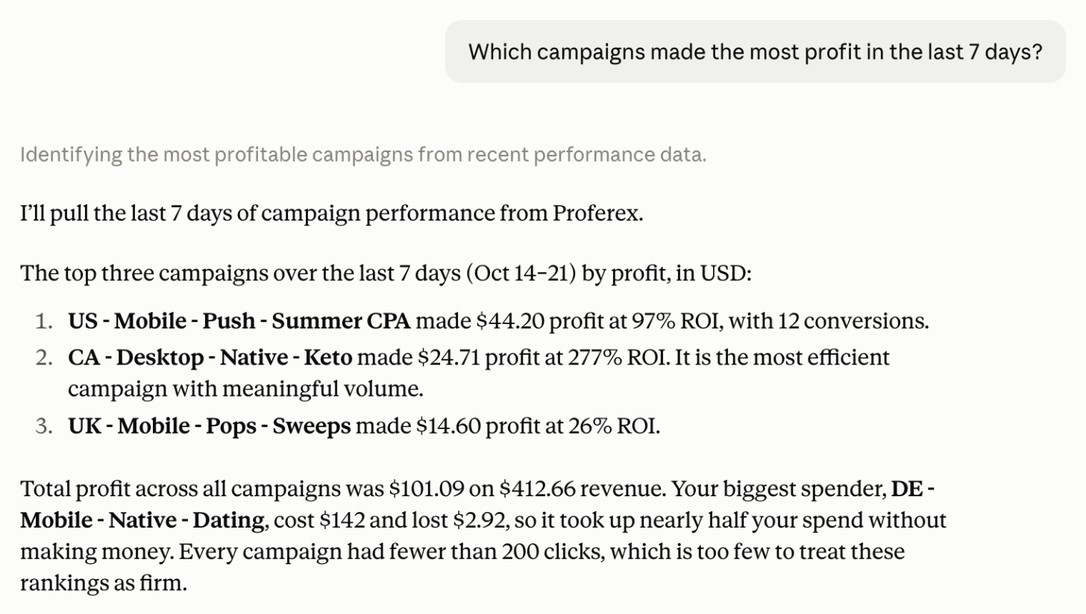
Claude answering from your Proferex stats See everything your AI wants to change
Head to Account → Connected AI Apps. Every change your AI apps have asked for is waiting there. Open one, check the values, then approve or decline. If you're done with an app, you can disconnect it from the same page.
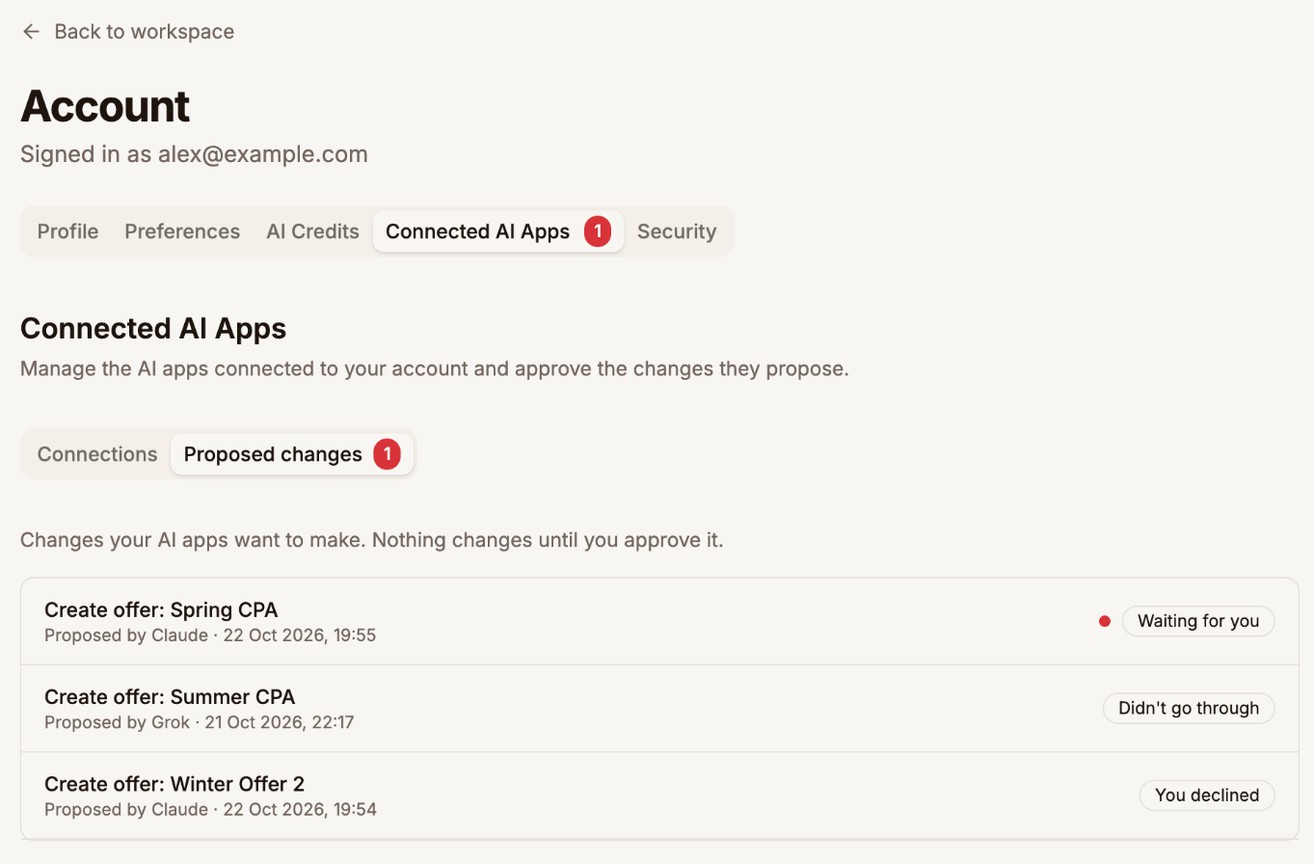
Waiting, approved or declined, newest first Let AI draft your blog posts
Tell the agent, or Claude, or ChatGPT, what to write about and it saves a draft to your blog. Don't like the intro? Say so in the chat and it'll rewrite it. Readers won't see a thing until you approve publishing.
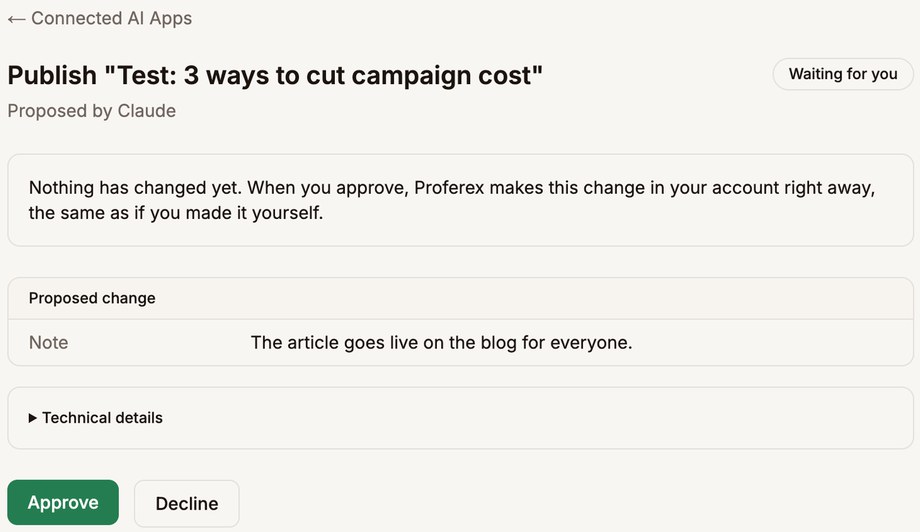
Nothing goes live until you approve it Blog rows open on click
Click any article or page in the list and it opens in the editor. Small thing, but it was annoying. The blog you had picked also stays picked when you come back.
Let your AI app make everyday changes without the extra trip
Each connected AI app now has a switch under Account → Connected AI Apps: approve changes in that app. Turn it on and small single changes, like a new offer or a paused campaign, go through once you confirm them in Claude or ChatGPT. No second approval in Proferex.
It's off by default, and the risky stuff still comes to Proferex no matter what: deletes, bulk edits, publishing a page and sending an email.

Turn the switch on under the app you trust Analytics results that stay put
Changing a filter no longer reshuffles the table before you hit Run, so you won't see new headings sitting on old numbers. If a run comes back empty, it tells you. Connection types now read Wi-Fi, Carrier and Datacenter, in plain words.
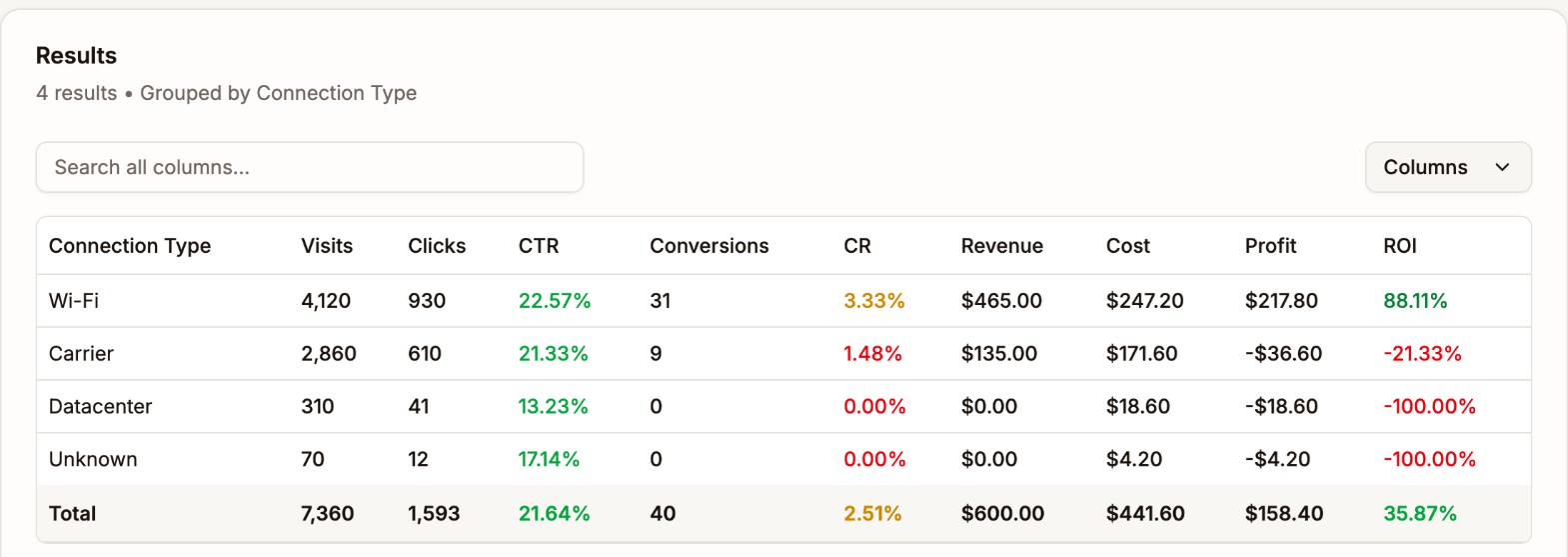
Connection types in plain words The Proferex Manual is live
We wrote the whole thing down. Setting up your first campaign, reading your reports, scaling a winner. There are screenshots on every page, and you can search it from anywhere in the docs.
Dayparting, one day at a time
Dayparting is now a weekly grid. Click the hours you want, day by day. Want Friday 10pm to Saturday 4am and nothing else? Just select those hours. Your old schedules carried over as they were.
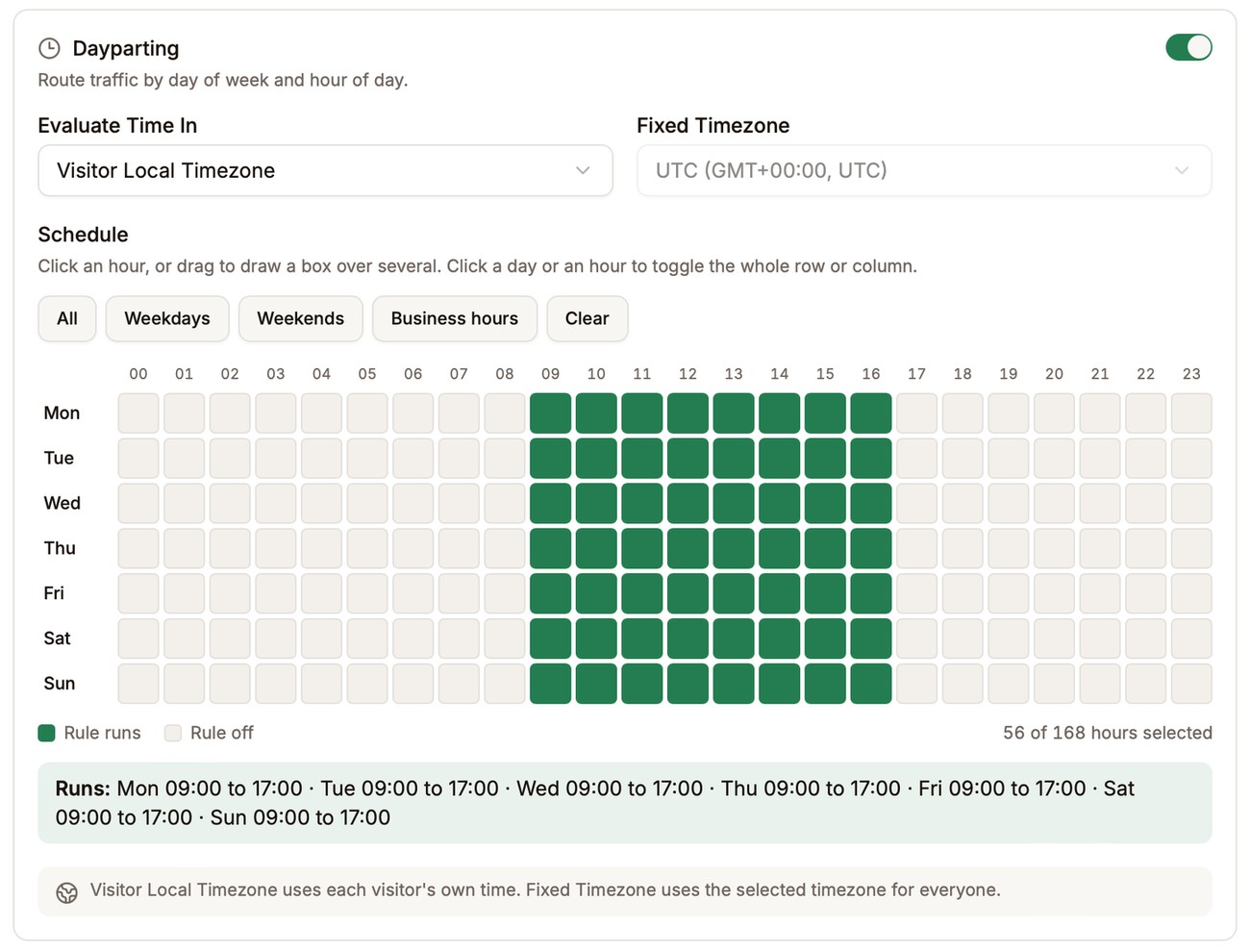
One row per day, one column per hour No more guessing country codes
Rule conditions and Analytics filters now give you a searchable list for countries, devices, browsers and more. You don't have to remember that the UK is GB anymore.
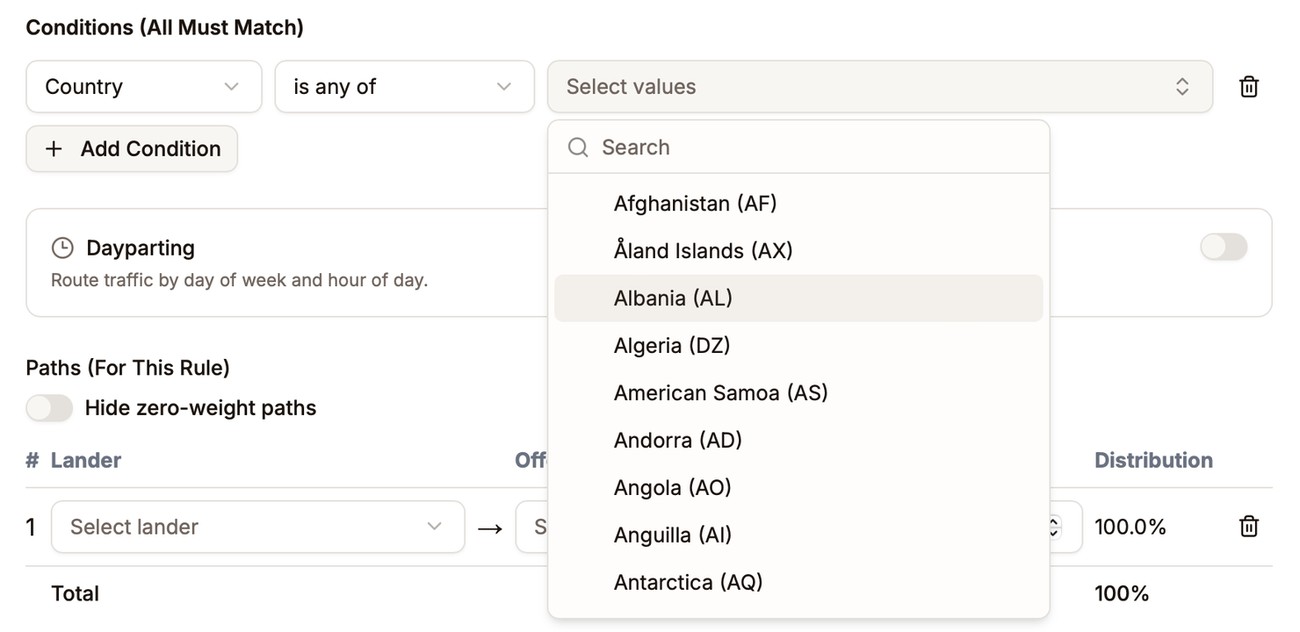
Search and pick, no codes to remember All your custom tokens in one report
Custom Tokens Performance now shows every token on a campaign side by side. Good for spotting which mix of values actually converts.
Full click details in the log
Click View on any click or conversion and you'll see everything we recorded for it, including every value your traffic source sent. Handy when a postback looks off.
Split one token value across several
You can now send one incoming token value to a few different values, by weight. Useful if you want to test two IDs on the same traffic.
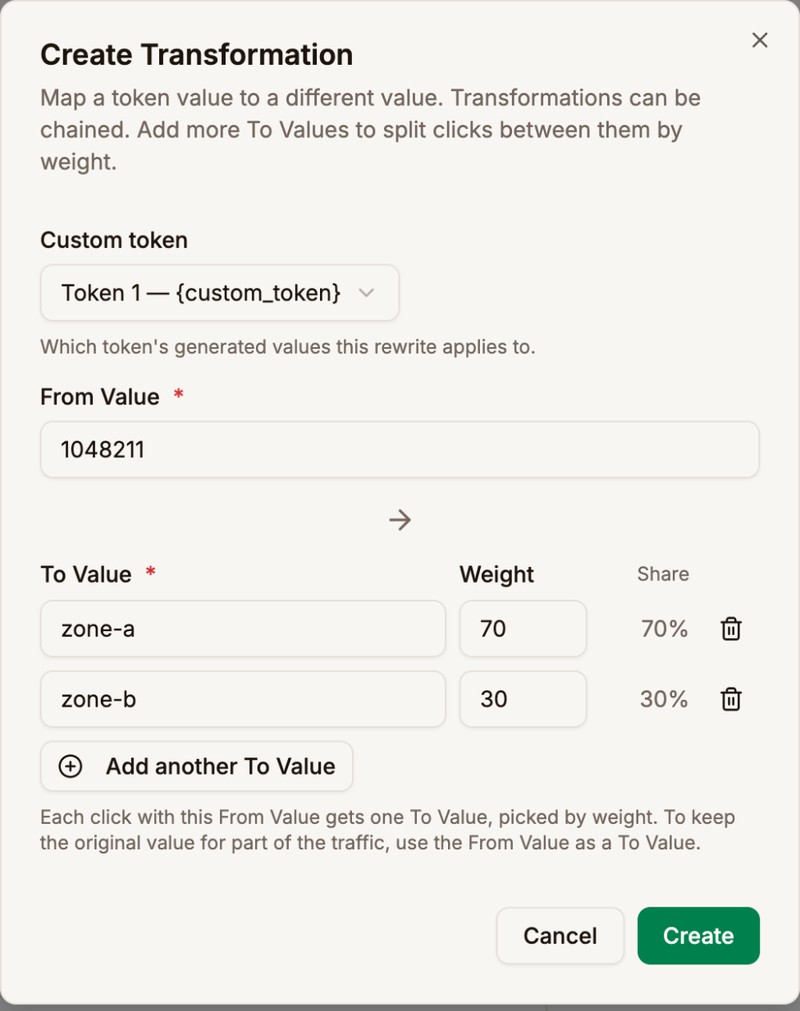
One value in, several out by weight The agent got smarter
We switched the agent to the latest Claude models, in both Fast and Deep mode. You'll notice it most on the harder "why is this campaign losing money" questions.
Exact numbers on the Dashboard
The Dashboard used to round things to $1.6K. Now you get the real number, down to the cent.
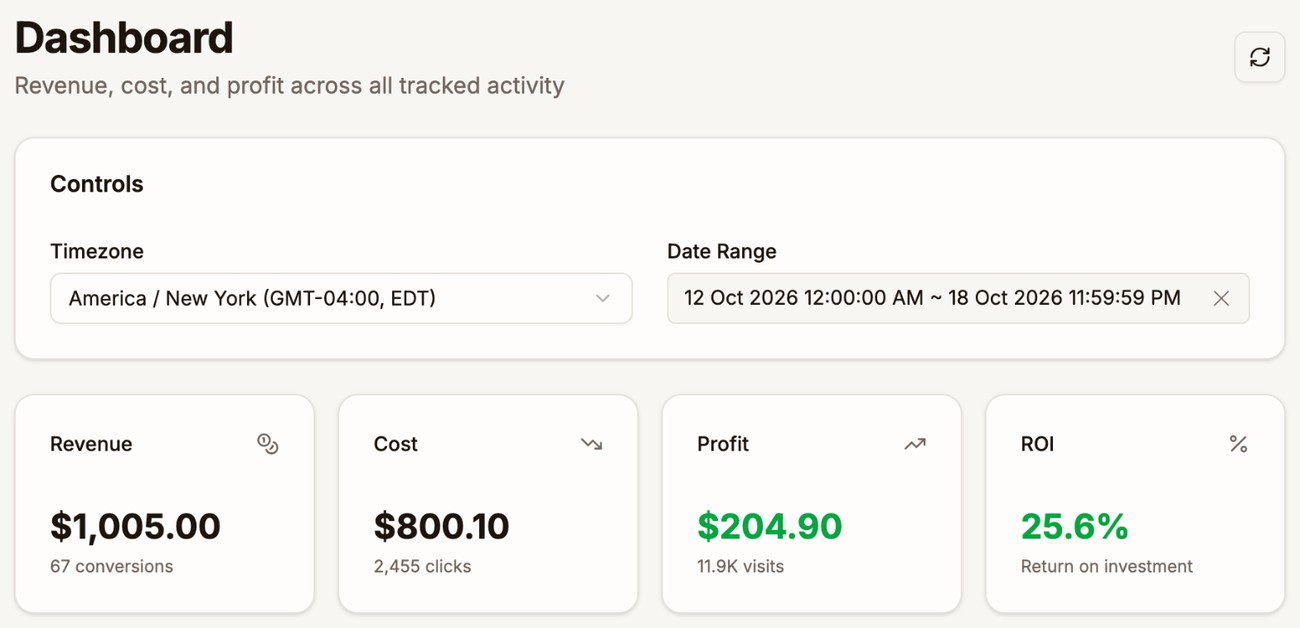
Down to the cent Hide switched-off paths
Got a combination with 30 paths and half of them switched off? There's a new toggle in the path editor that hides the ones set to 0.
The agent knows the manual
Ask the agent how to do something in Proferex and it answers from the manual, with a link to the chapter if you want the full story.
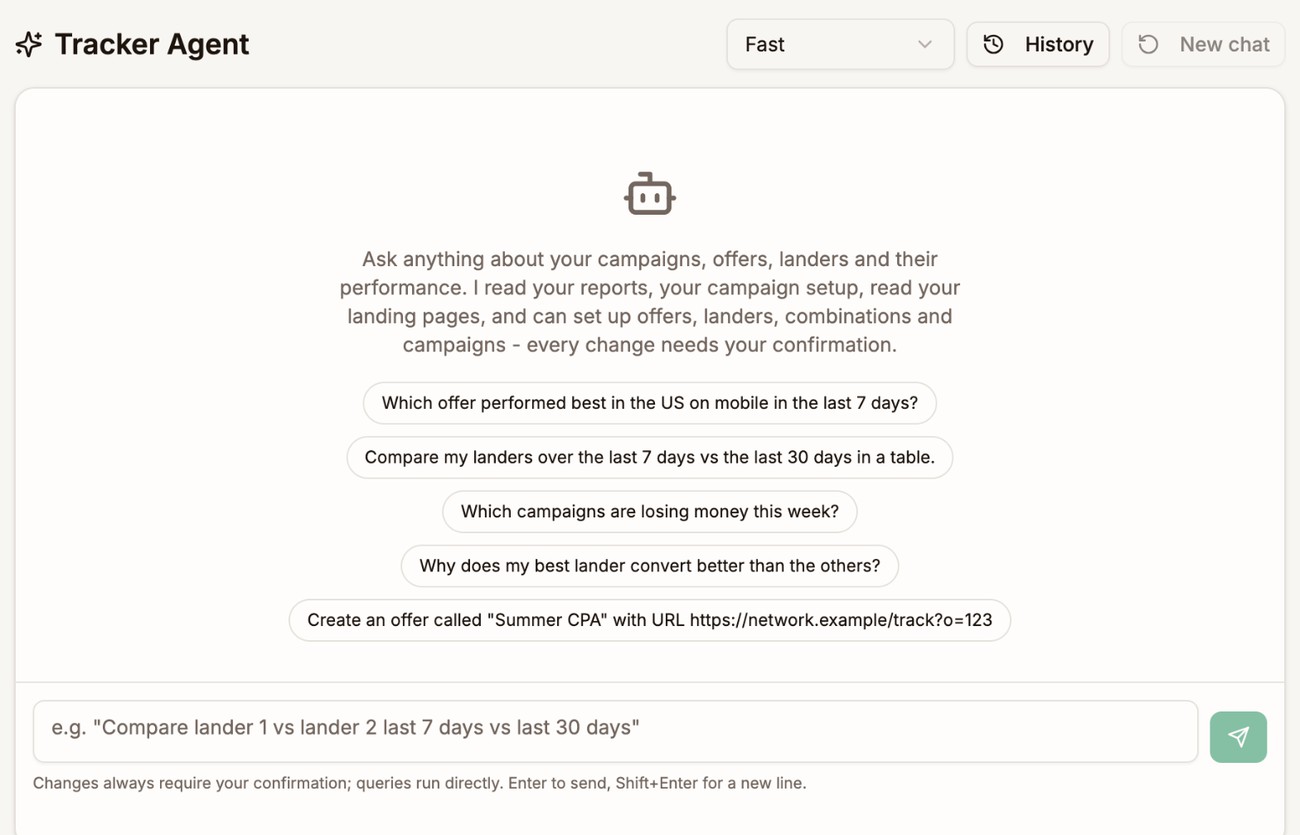
Ask it anything, including how to use Proferex